How to Setup IPTV On Apple / IOS











8K IPTV
Setup IPTV On Apple / IOS With Smarters Player Lite
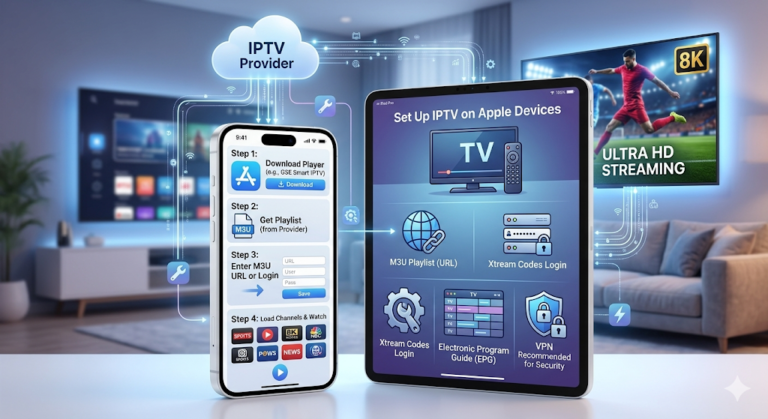
Step 1: Start by downloading the IPTV Smarters app from the Apple Store through this URL :
https://itunes.apple.com/us/app/iptv-smarters-player/id1383614816
or you can search for it on the App Store
step2: install the app on your IOS device.
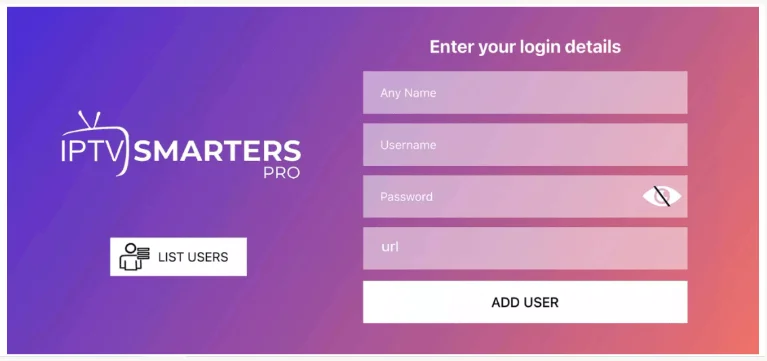
step 3: Enter the login details that we have provided you after you get a subscription with us
Now Click on “ADD USER” to proceed to the next section.
Step 4: Wait some seconds.
Step 5: Now click on the “Live TV” icon as depicted in the image via a red arrow.
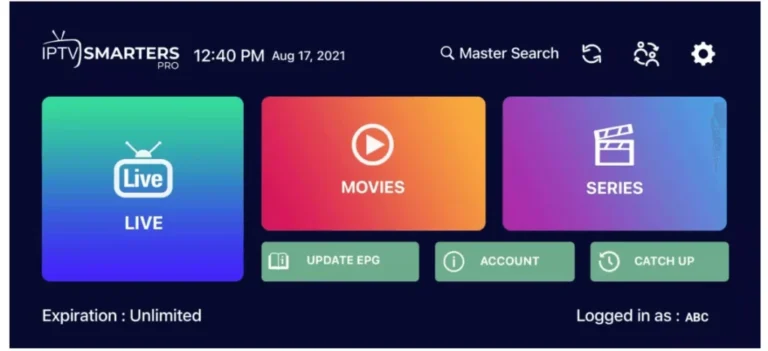
Step 6: Now you must select the channel group that you want to watch and proceed to the next section.
Step 7: Now you must click on the channel name and then double-click on the small screen to turn into full screen as the final step.
Step 8: To add EPG no need to add any EPG URL, Just click on “Install EPG”. Done
MAC Method :
Download the IPTV Smarters app through this URL: https://www.iptvsmarters.com/download?download=mac
Note: If you still have issues, please take a photo of your Mac address and device key with your phone and send it to our team via EMAIL: contact@8kiptv.net
Or contact us via WhatsApp
Set Up IPTV on Apple/IOS Devices – A Complete Installation Guide
Set up IPTV on Apple/IOS devices today and enjoy seamless streaming with high-quality live TV, movies, and on-demand content. Whether you’re using an Apple TV, iPhone, or iPad, this step-by-step guide will help you get started with ease.
Why Choose IPTV for Apple/IOS?
IPTV on Apple/IOS provides a great viewing experience, offering access to live TV channels, movies, and series. With devices like Apple TV, iPhone, and iPad, you can enjoy high-quality streaming that’s both flexible and reliable.
How to Set Up IPTV on Apple TV
Setting up IPTV on Apple TV is simple:
- Install the IPTV App: Go to the App Store on your Apple TV and download the IPTV app from your provider.
- Log In with Your Subscription: After installation, use your IPTV credentials to log in.
- Start Streaming: Once logged in, you can begin enjoying live TV and on-demand content.
How to Set Up IPTV on iPhone/iPad
To Set Up IPTV on iPhone or iPad, follow these easy steps:
- Download the IPTV App: Search for your IPTV service’s app in the App Store.
- Log In: Enter your IPTV credentials to access your channels and shows.
- Start Watching: You can now stream live TV and VOD content directly on your iPhone or iPad.
Tips for Better IPTV Experience on Apple Devices
- Ensure a fast internet connection (10 Mbps for HD, 25 Mbps for 4K/8K streaming).
- Use a stable Wi-Fi connection to minimize buffering.
- Regularly update your IPTV app for the best experience.